
Step 1
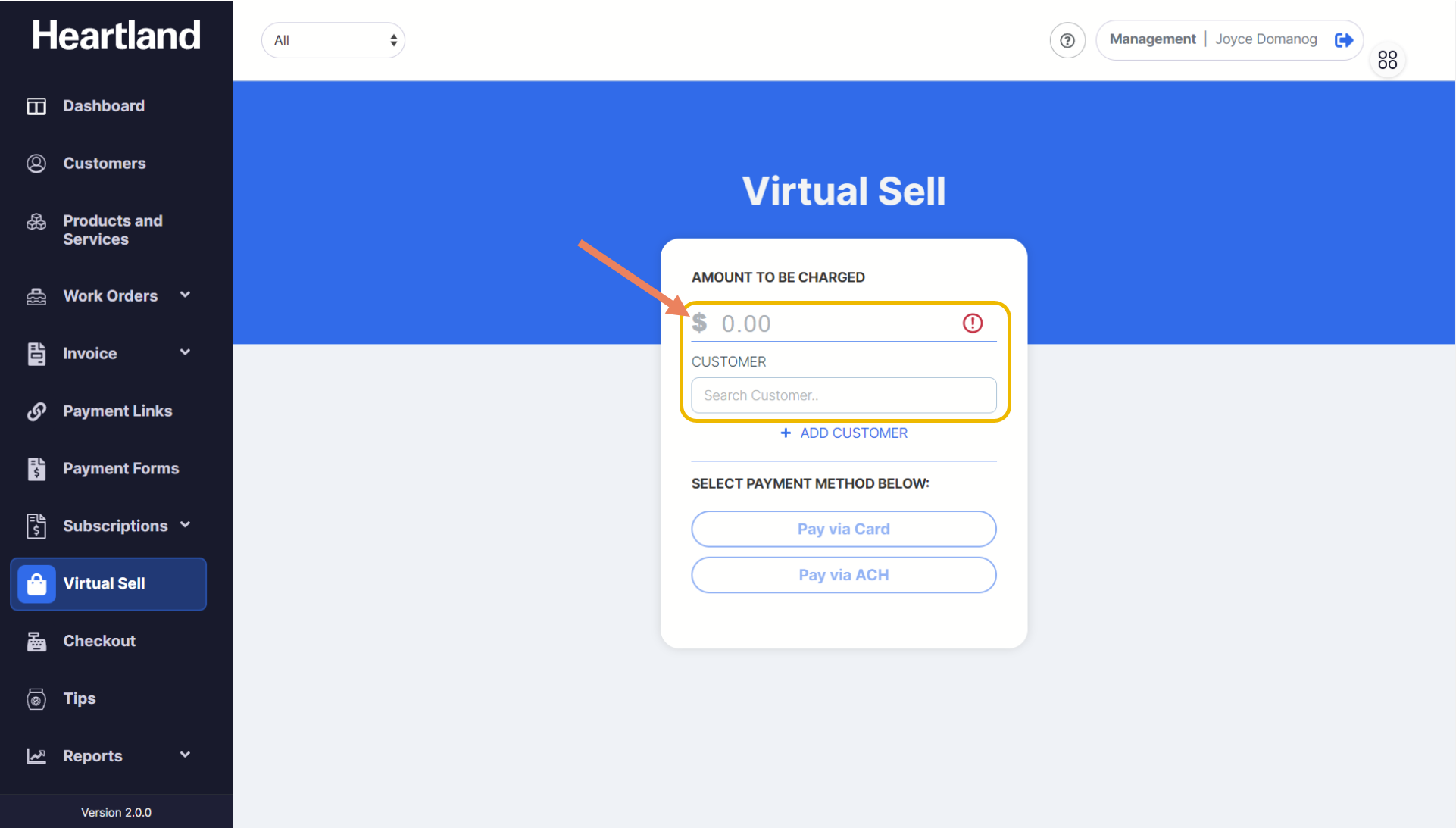
From the Virtual Sell page, populate amount and customer field to continue processing payment.
*If you wish to learn how to add a new customer on Virtual Sell payment, click here.
Step 2
Click Pay via Card.
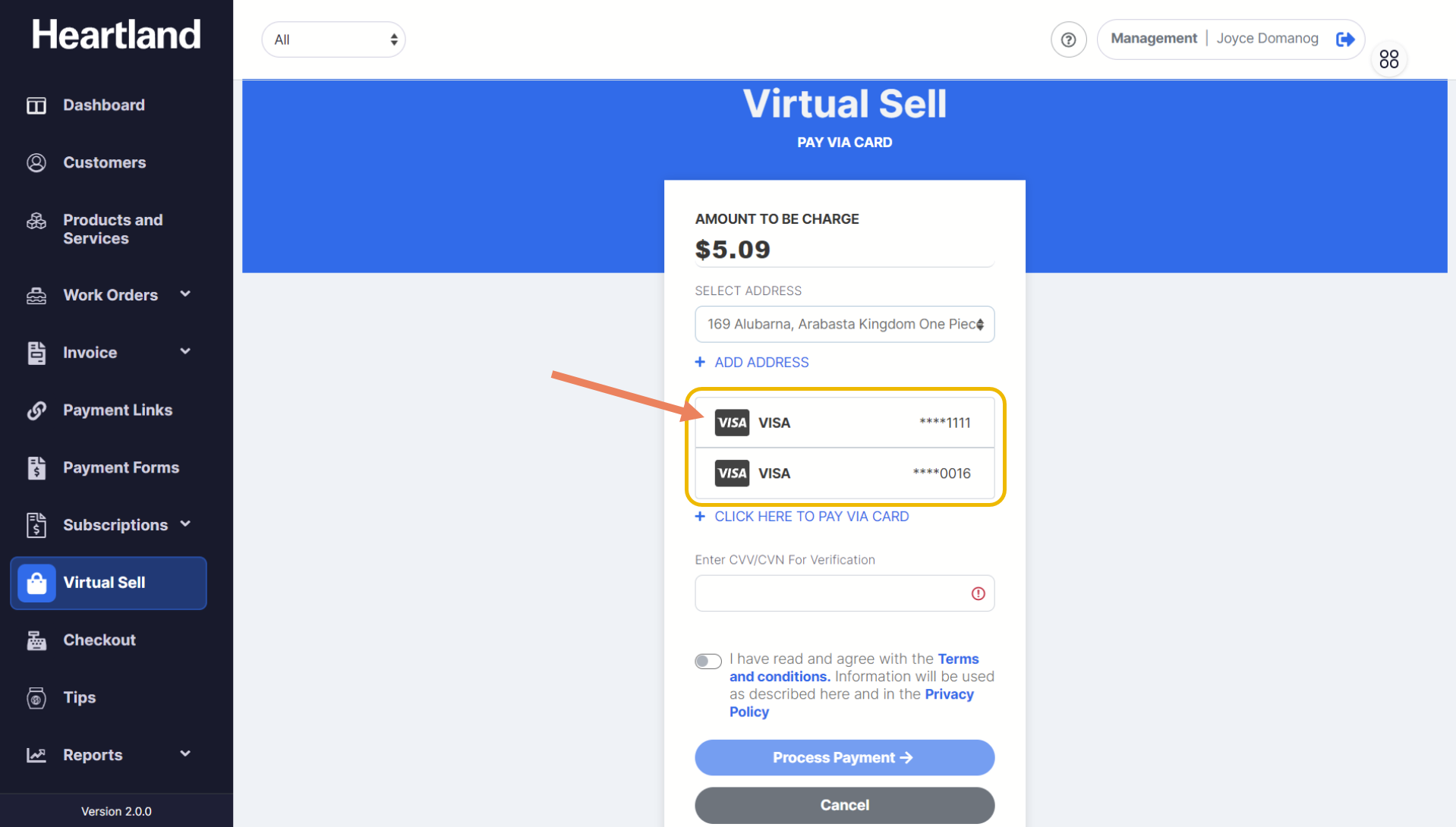
 If customer selected already has a card on file, you will be redirected to card on file selection page.
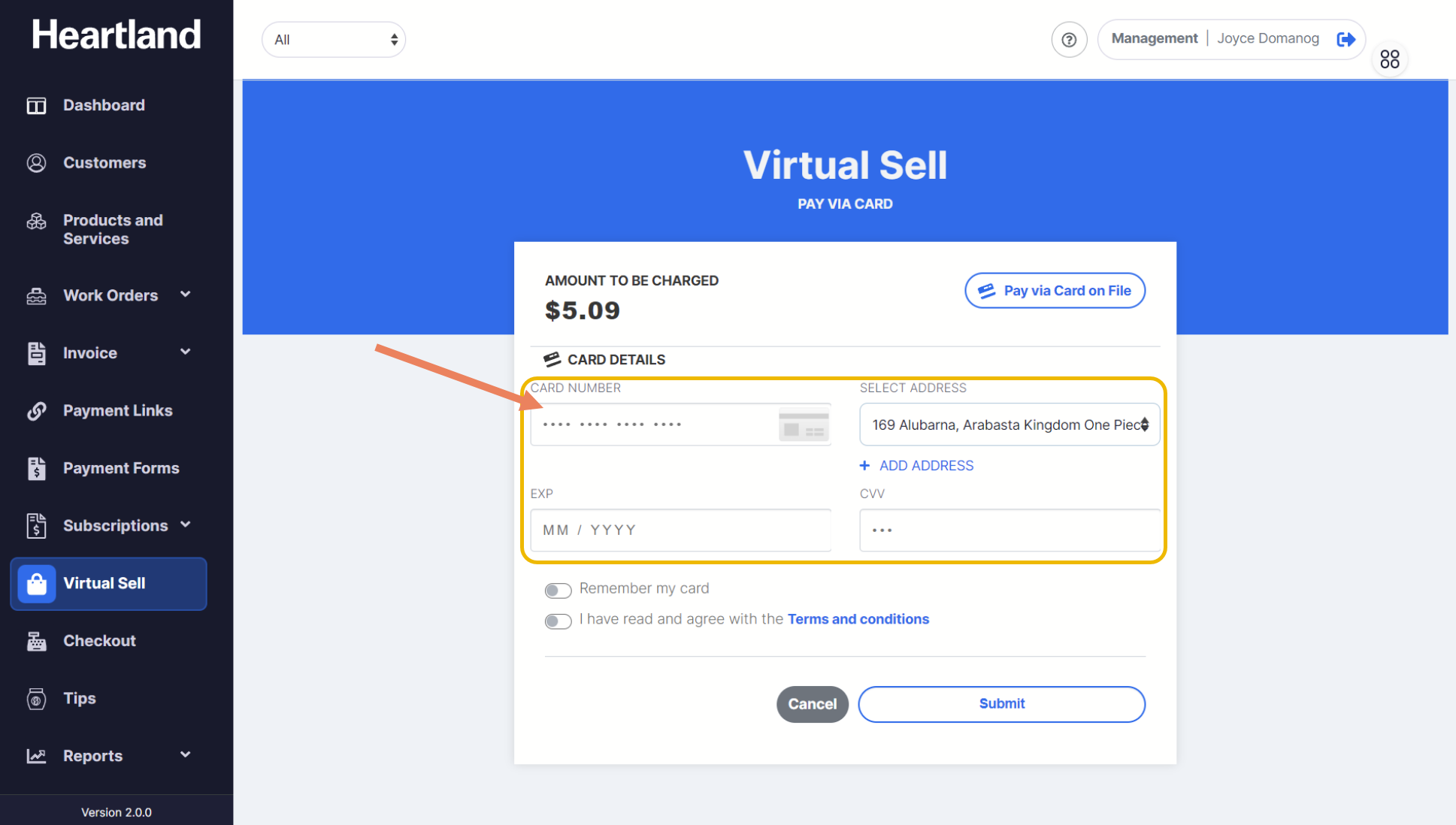
If customer has NO card on file saved, you will be redirected to card input page.
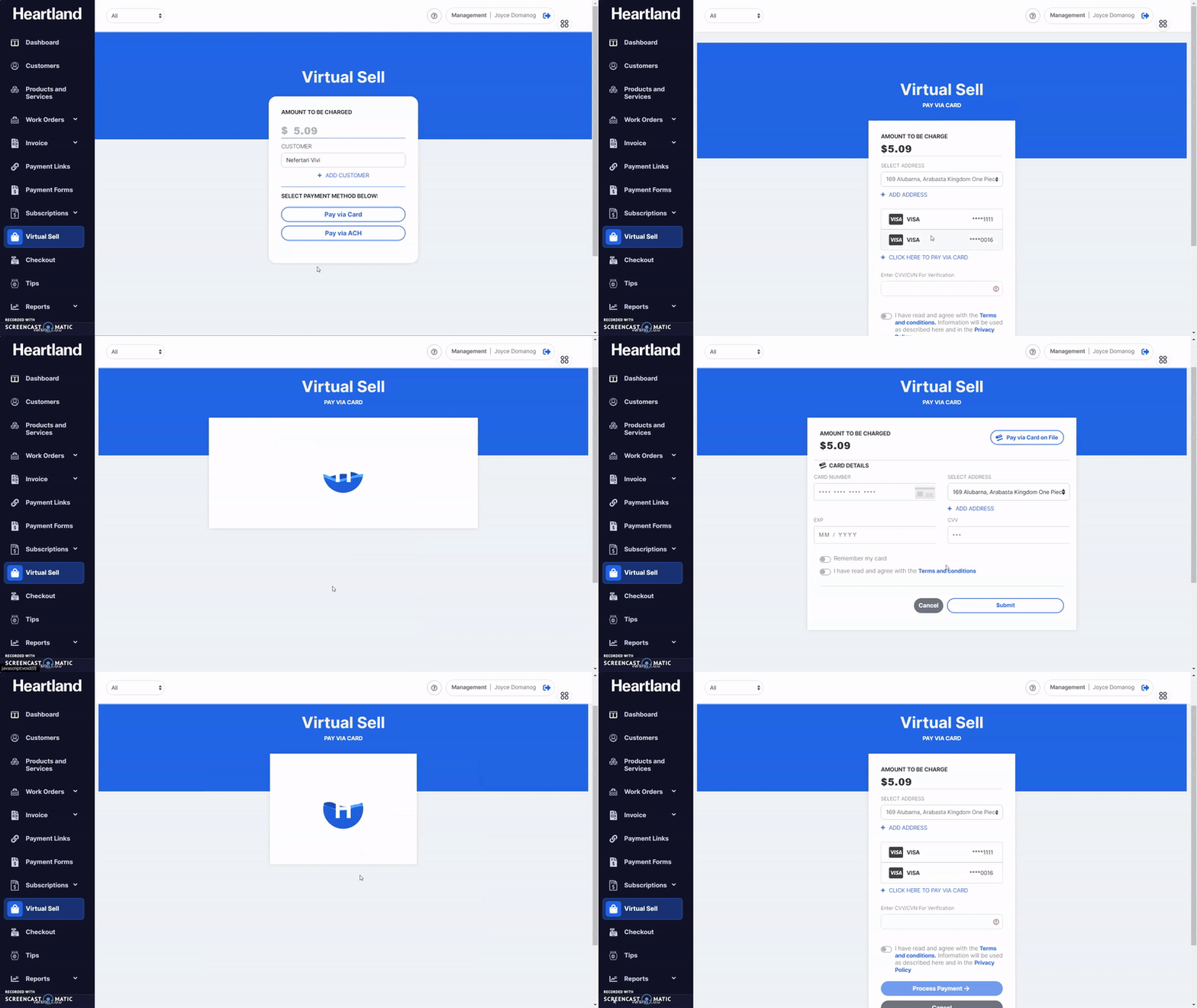
NOTE: When customer already has a card on file and you want to use a different card, just click on the link as shown below.
Step 3
Select preferred card to use or input card details to proceed with the payment and fill out the CVV field (when enabled).
*Click here to learn how to enable or disable CVV Security field.
Step 4
Agree to Payments Manager+ merchant’s Terms and Conditions and Privacy Policy.
Step 5
Submit the form.
 You will be redirected to a success page once payment is successful.
Comments
0 comments
Please sign in to leave a comment.