
Payments Manager+ Web Overview
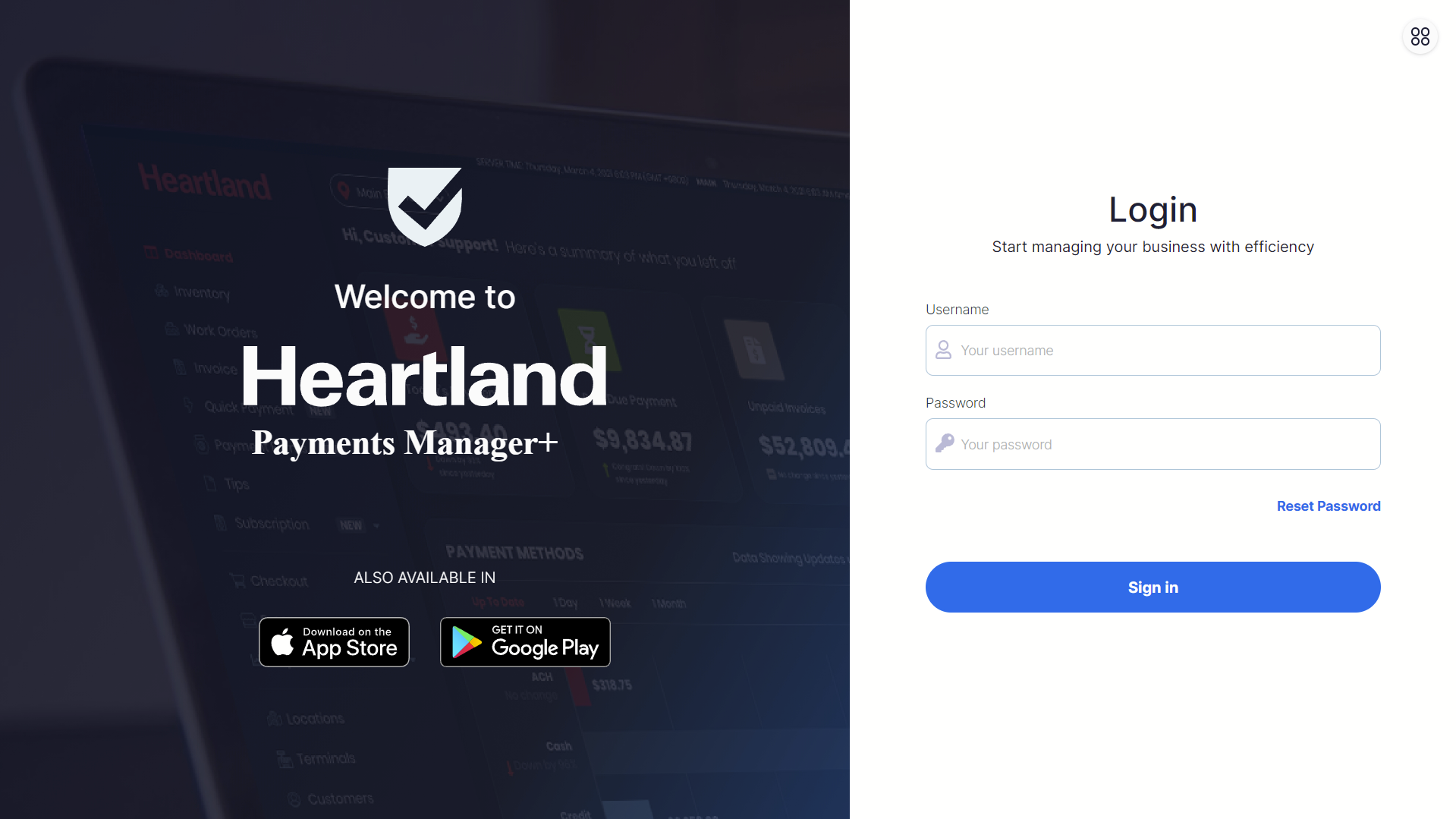
There are two ways in changing the Merchant Portal password:
1. Reset the password from the landing page.
2. Changing the password under the Settings module.
Reset Password
Step 1
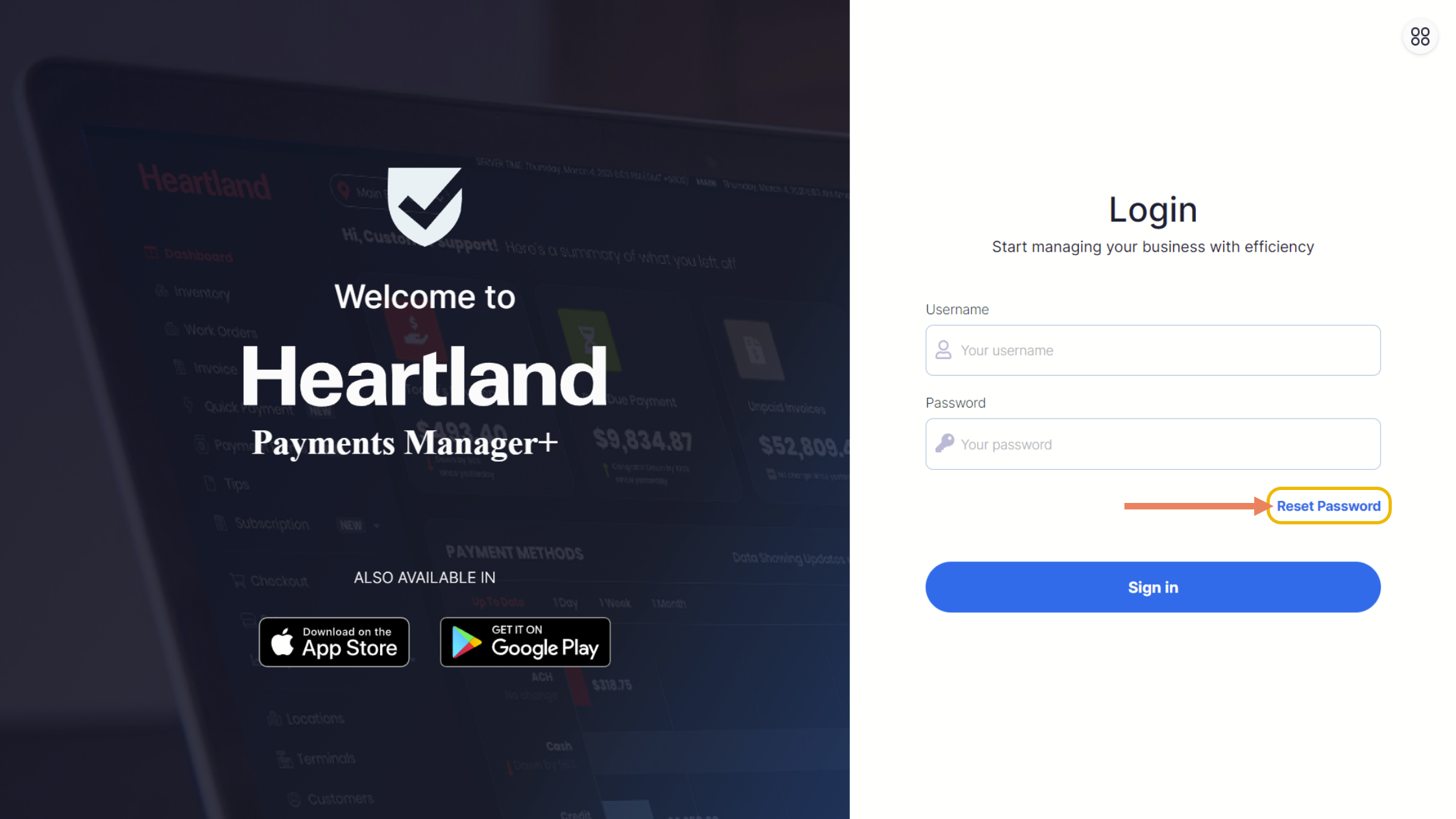
To reset the password, go to the Merchant Portal and click Reset Password below the login fields.
Step 2
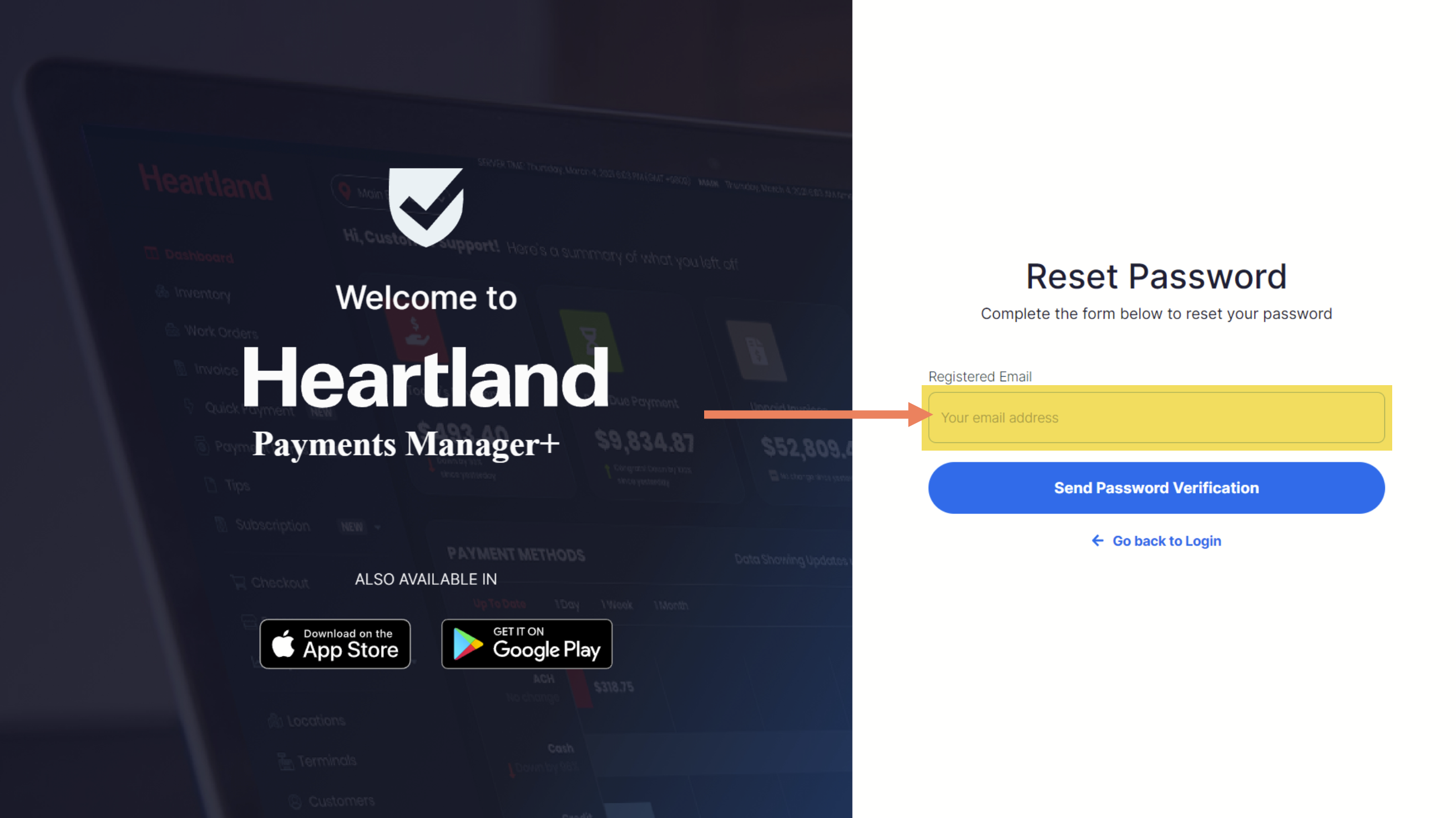
Then enter the registered email address in the field provided to receive the Password Reset link in the email.
Step 3
Click Send Password Verification.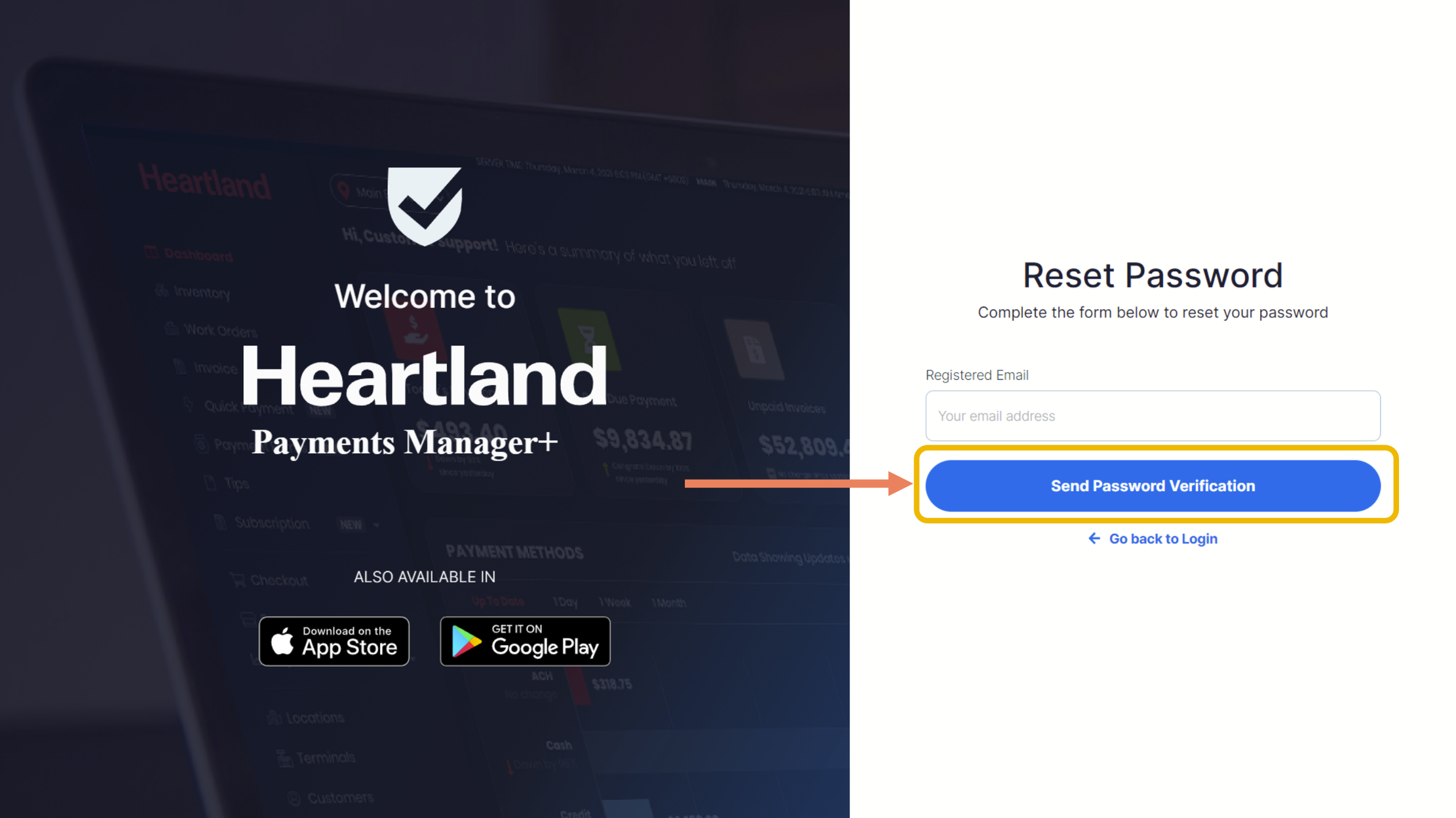
 A success message will be displayed once the Password Reset link has been sent to the registered email address.
Step 4
Click OK.
NOTE: Verify if Password Reset request has been sent on the registered email address.
Step 5
From the email, click Reset my password.
Step 6
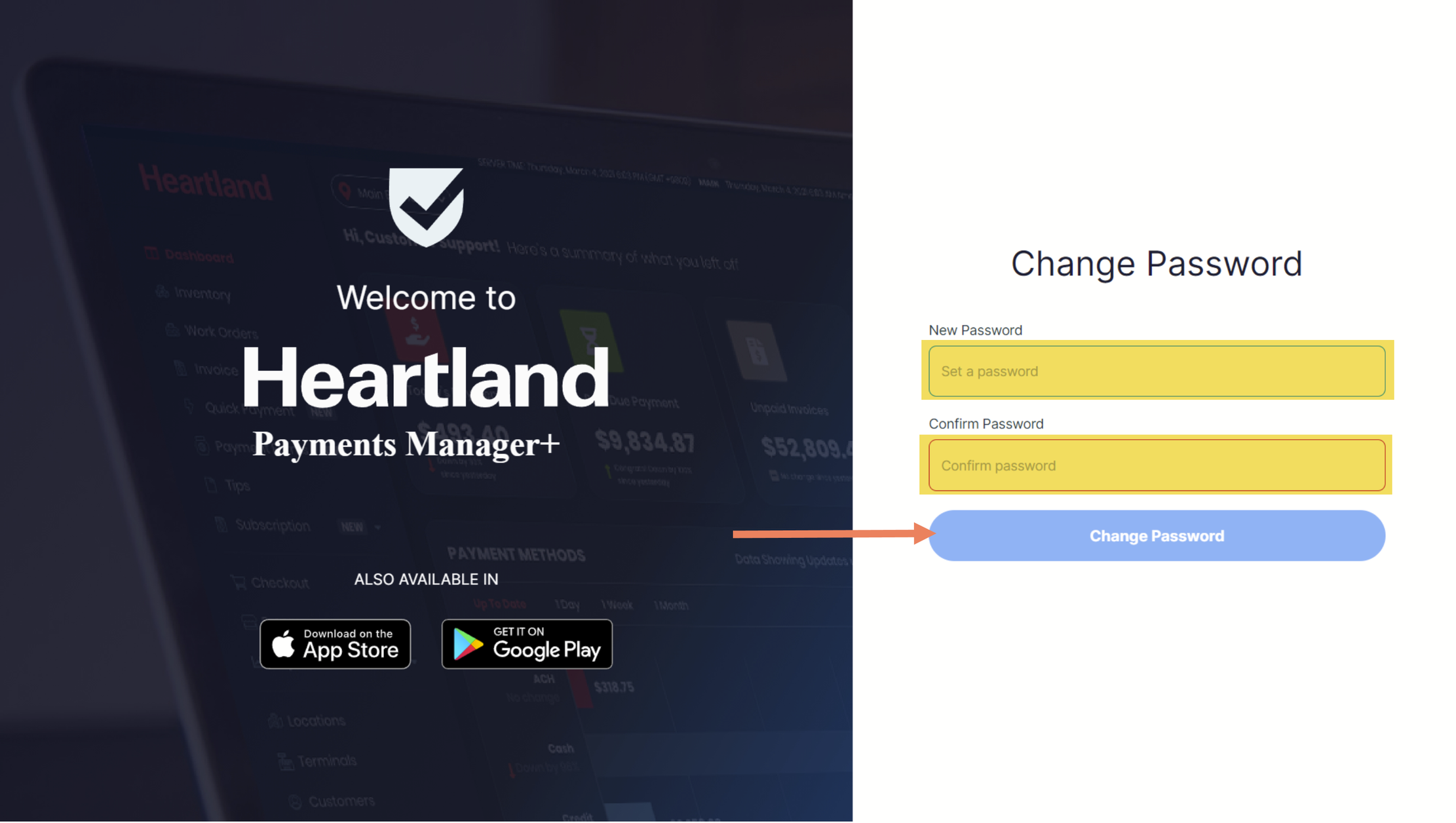
Once clicked, merchant will be redirected to Change Password page.
Step 7
Enter new password on the fields provided and click Change Password.
NOTE: Password can only contain numbers, letters or these special characters ($, !, @) with a minimum length of 4 and maximum of 16.
A success message will be displayed once changes has been applied.
Step 8
Click OK.
Step 9
Log in again using the new password set.
Comments
0 comments
Please sign in to leave a comment.