
Step 1
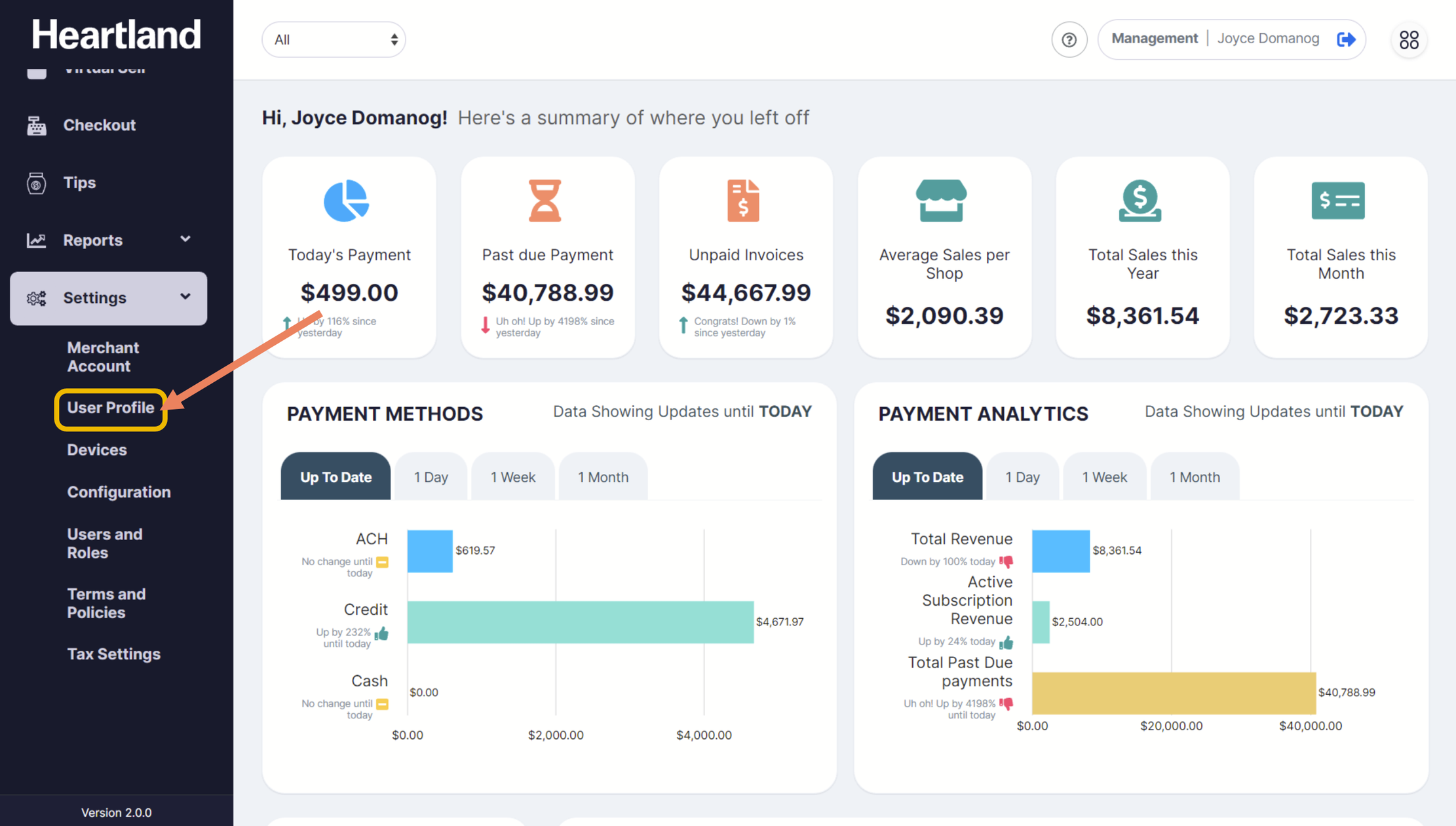
To change password, login in to the Merchant Portal and go to Settings and select User Profile.

Step 2
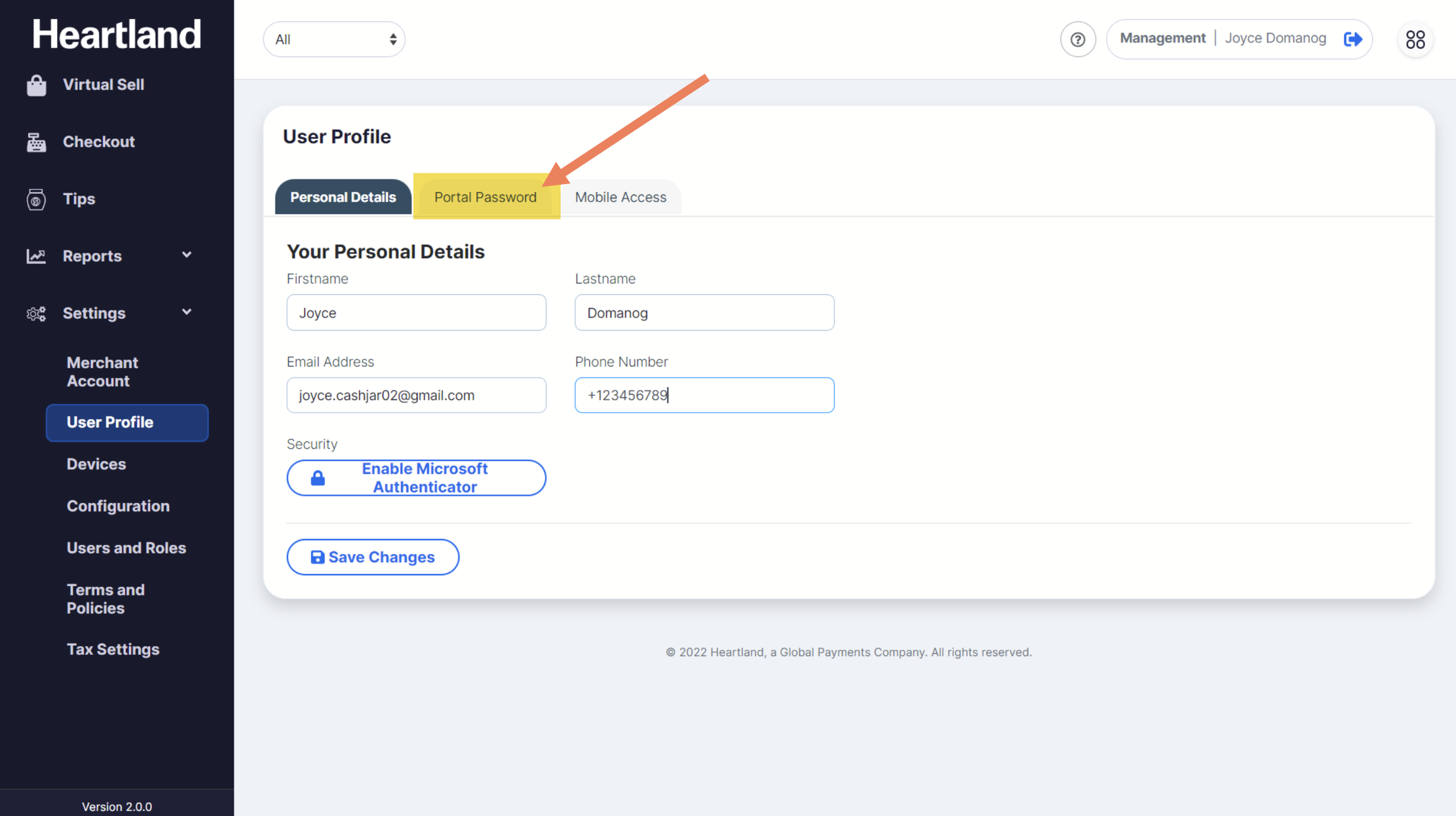
From User Profile Page, choose Portal Password tab.

Step 3
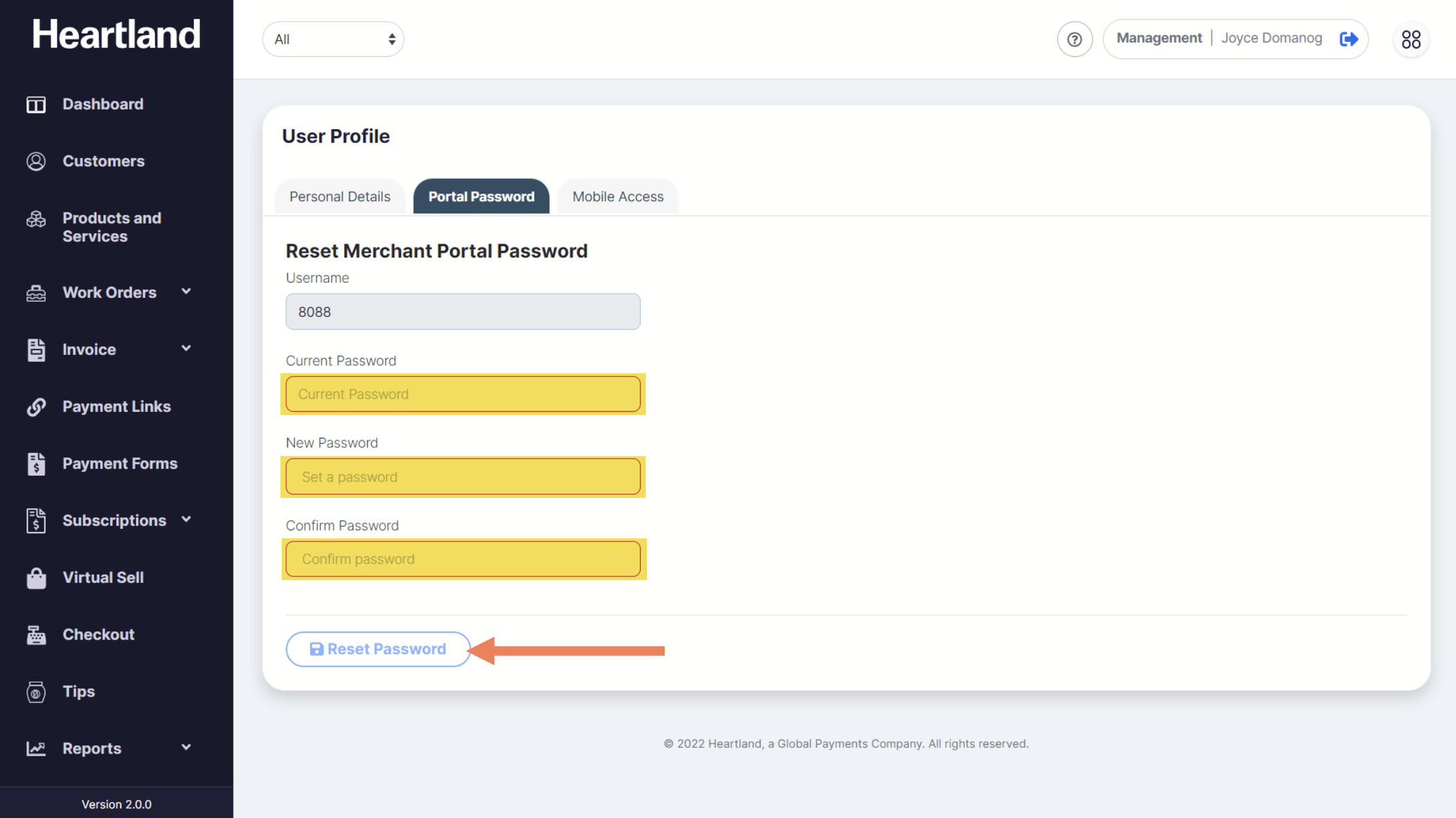
Populate required fields to successfully change Merchant Portal password then click Reset Password.
NOTE: Password can only contain numbers, letters or these special characters ($, !, @) with a minimum length of 4 and maximum of 16.
 A success message will be displayed once changes has been applied.
Step 4
Click OK.
Step 5
Log in again using the new password set.
Comments
0 comments
Please sign in to leave a comment.