
There are two (2) ways to resend a Payment Link via Email:
1. From the list of Payment Links
2. From viewing a Payment Link
FROM THE LIST OF PAYMENT LINKS
Step 1
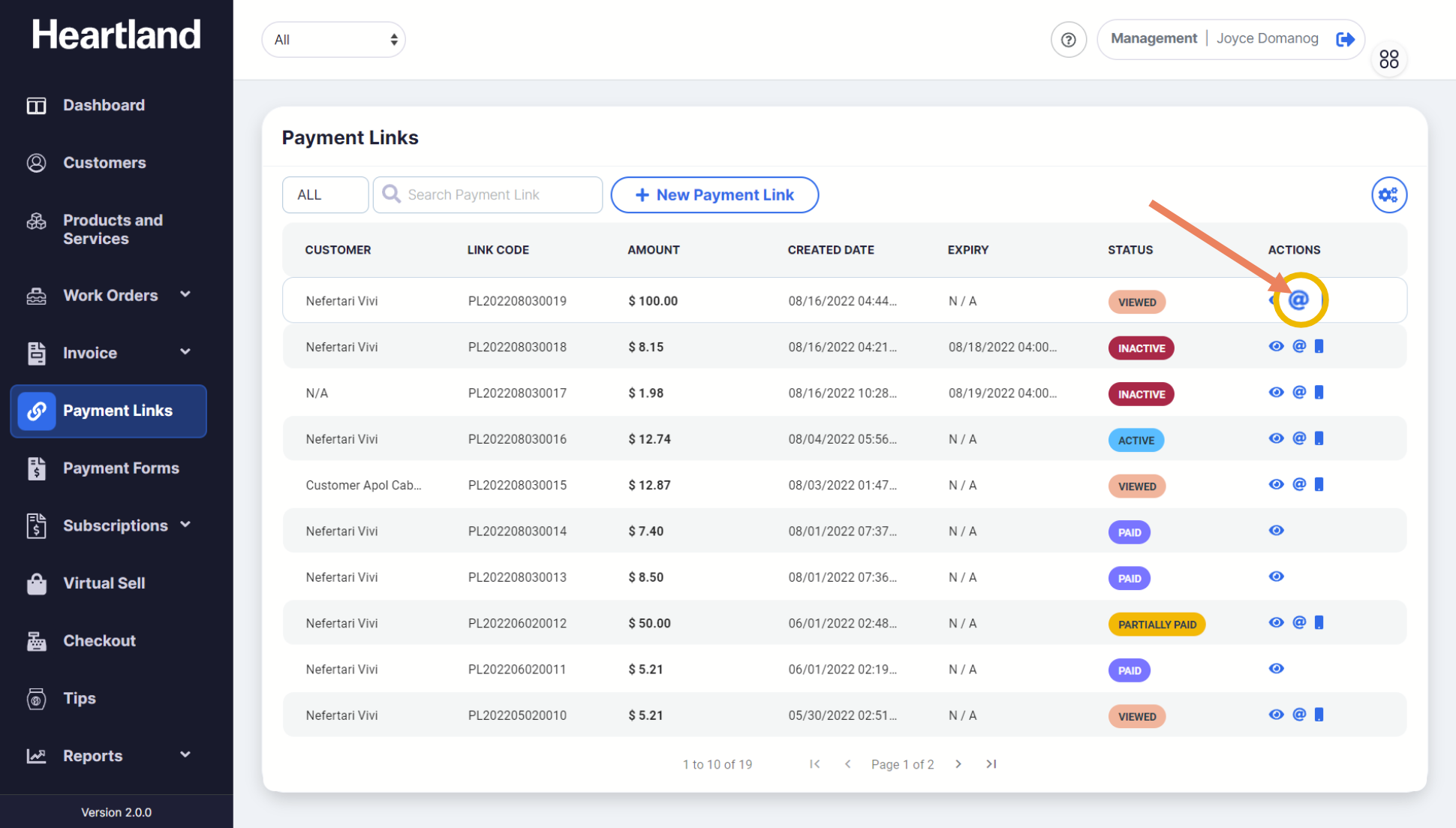
To resend Payment Link via Email, select from the list of Payment Links and click the at symbol (@) under Actions column.
A confirmation slide-out will appear. Enter the email address you want to send the Payment Link to.
NOTE: Email address field will be pre-populated when selected Payment Link is already designated to a customer with email address available.
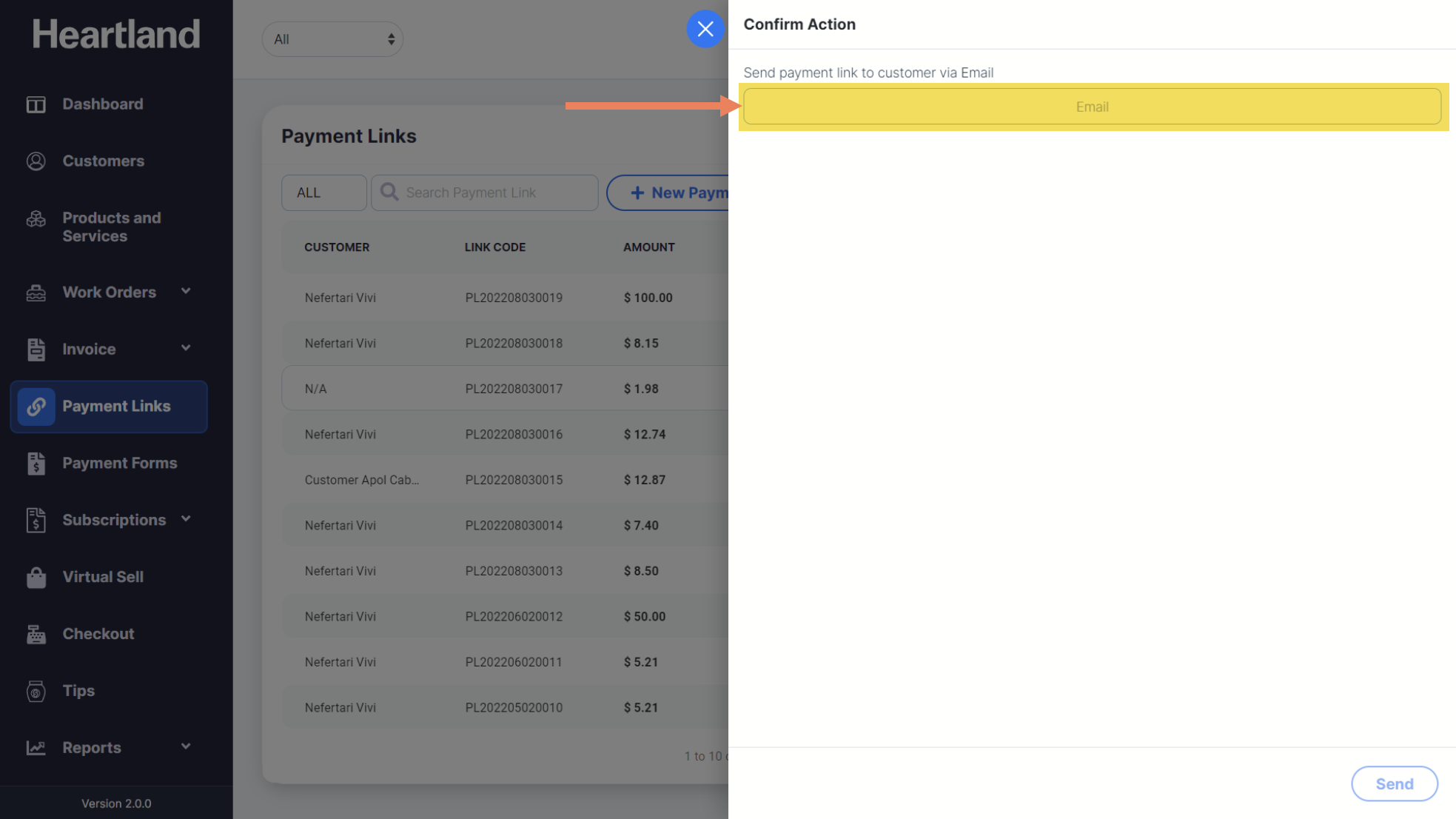
Click Send.
 A message will appear when sending Payment Link via Email is successful.
Step 4
Click OK.
FROM VIEWING A PAYMENT LINK
Step 1
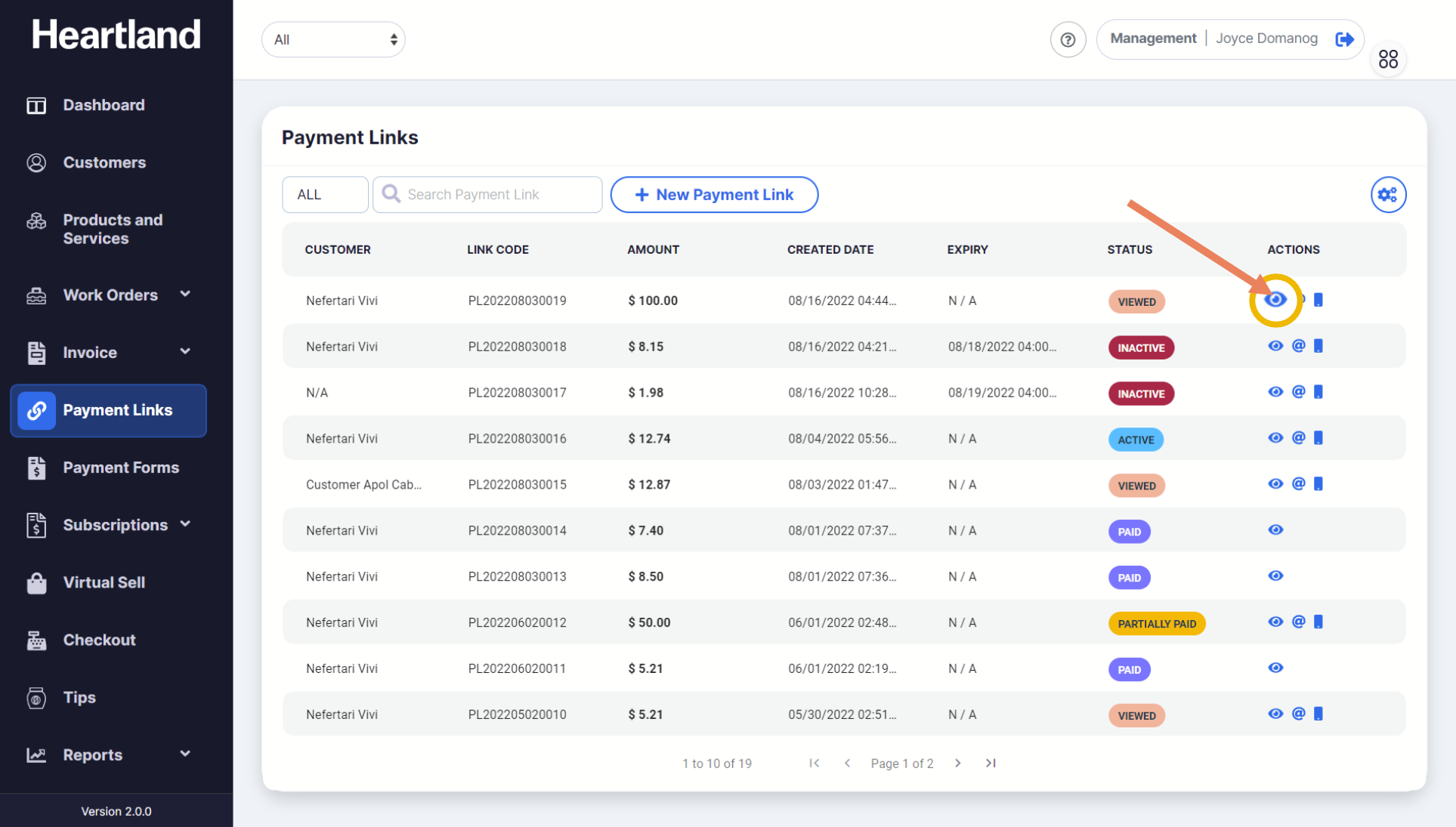
Select a Payment Link you want to view and send to a customer by clicking the eye icon (👁) under Actions column.
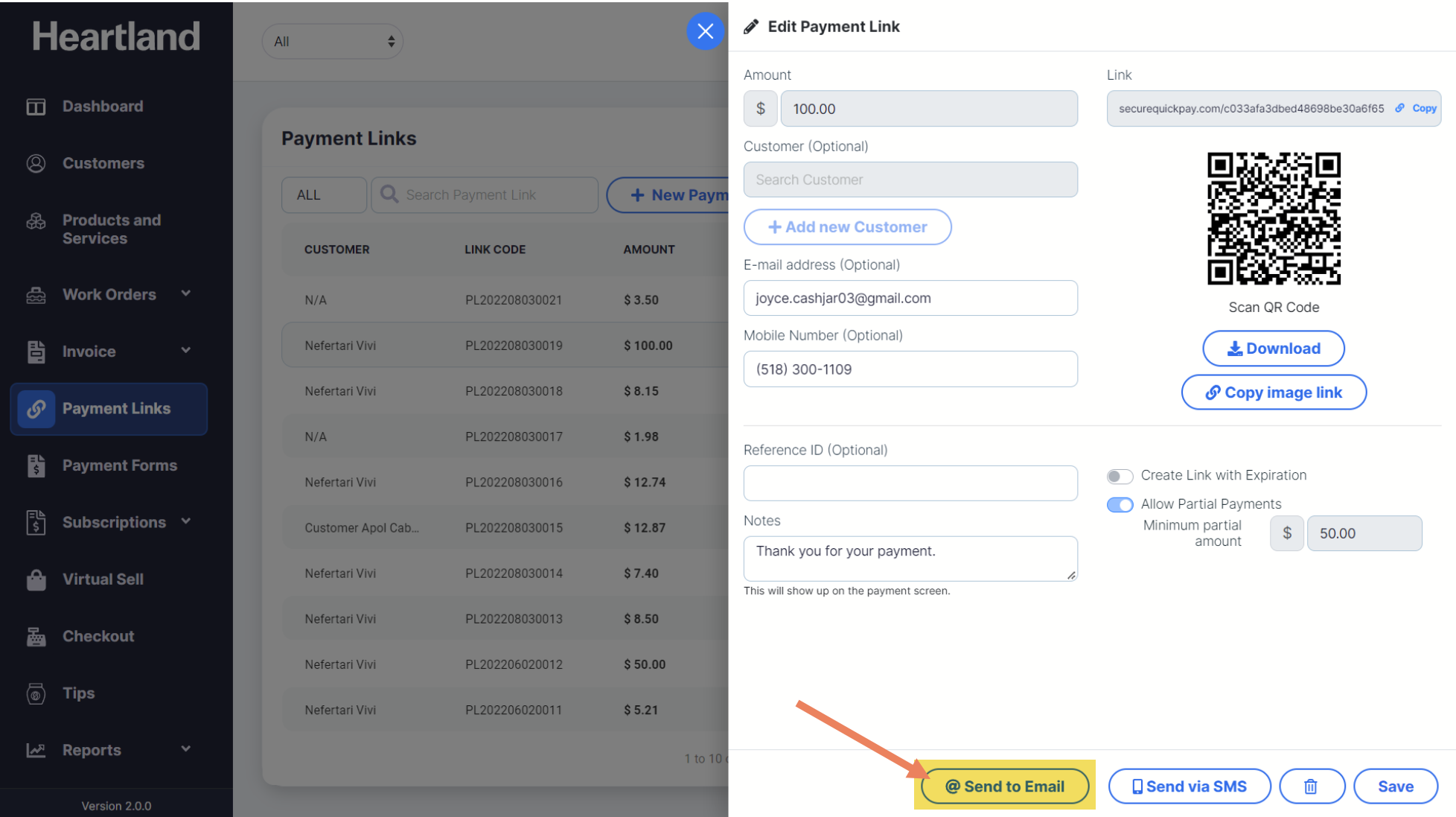
On Edit Payment Link slide-out modal, click Send to Email button.
NOTE: When email address field is empty, Send to Email button will be disabled. Add an email address when Payment Link is not yet designated to a customer with email address.
A message will appear when sending Payment Link via Email is successful.
Step 3
Click OK.
Comments
0 comments
Article is closed for comments.