
Step 1
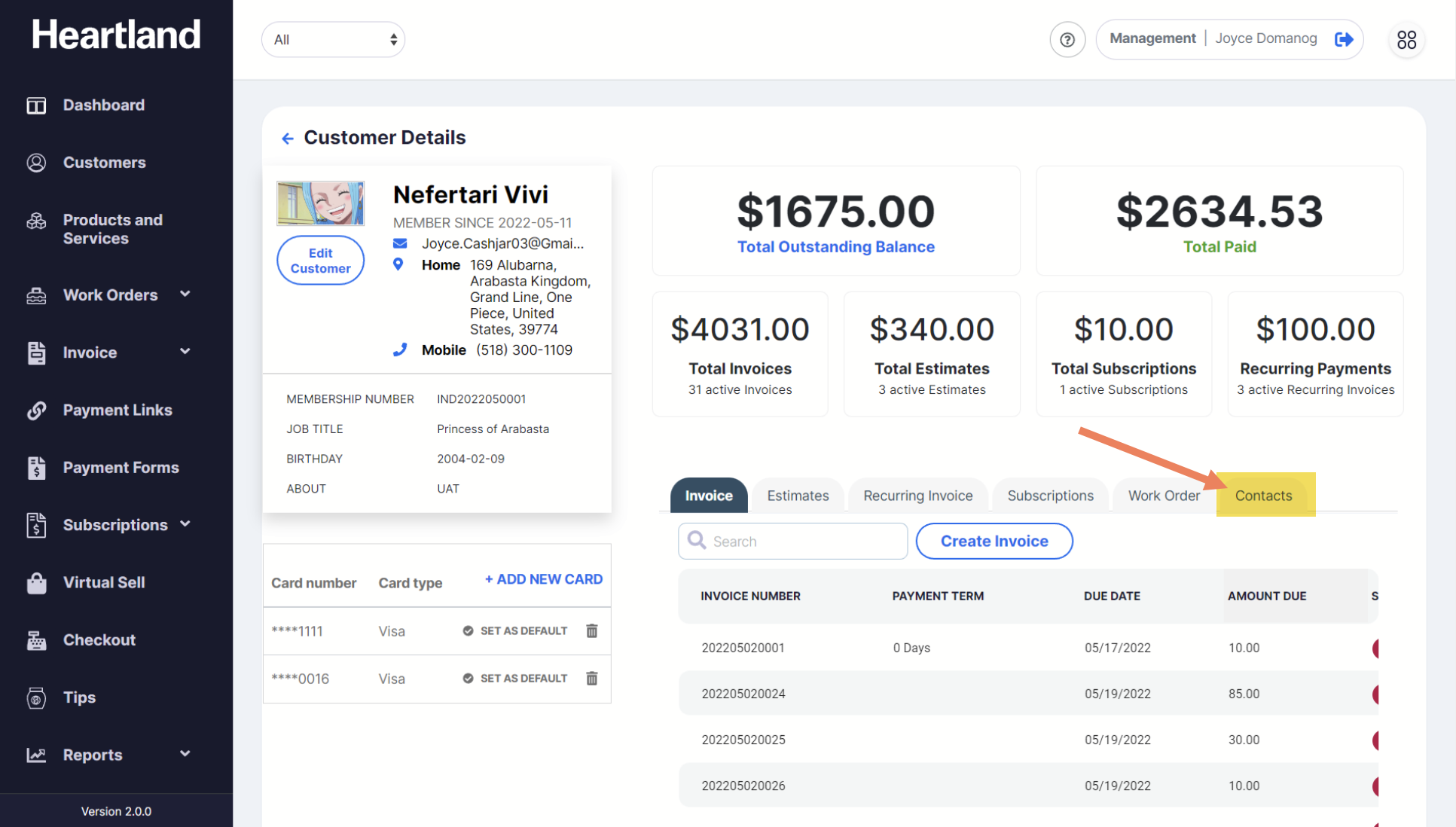
From Customer’s Profile, go to Contacts tab.
Step 2
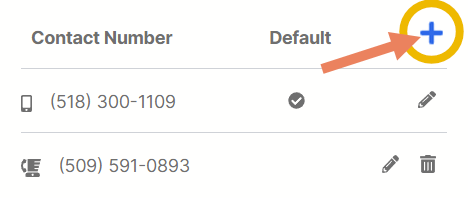
To add new customer contact number, click the plus ‘+' symbol on the Contact Number panel and a slide-out modal will appear.
Step 3
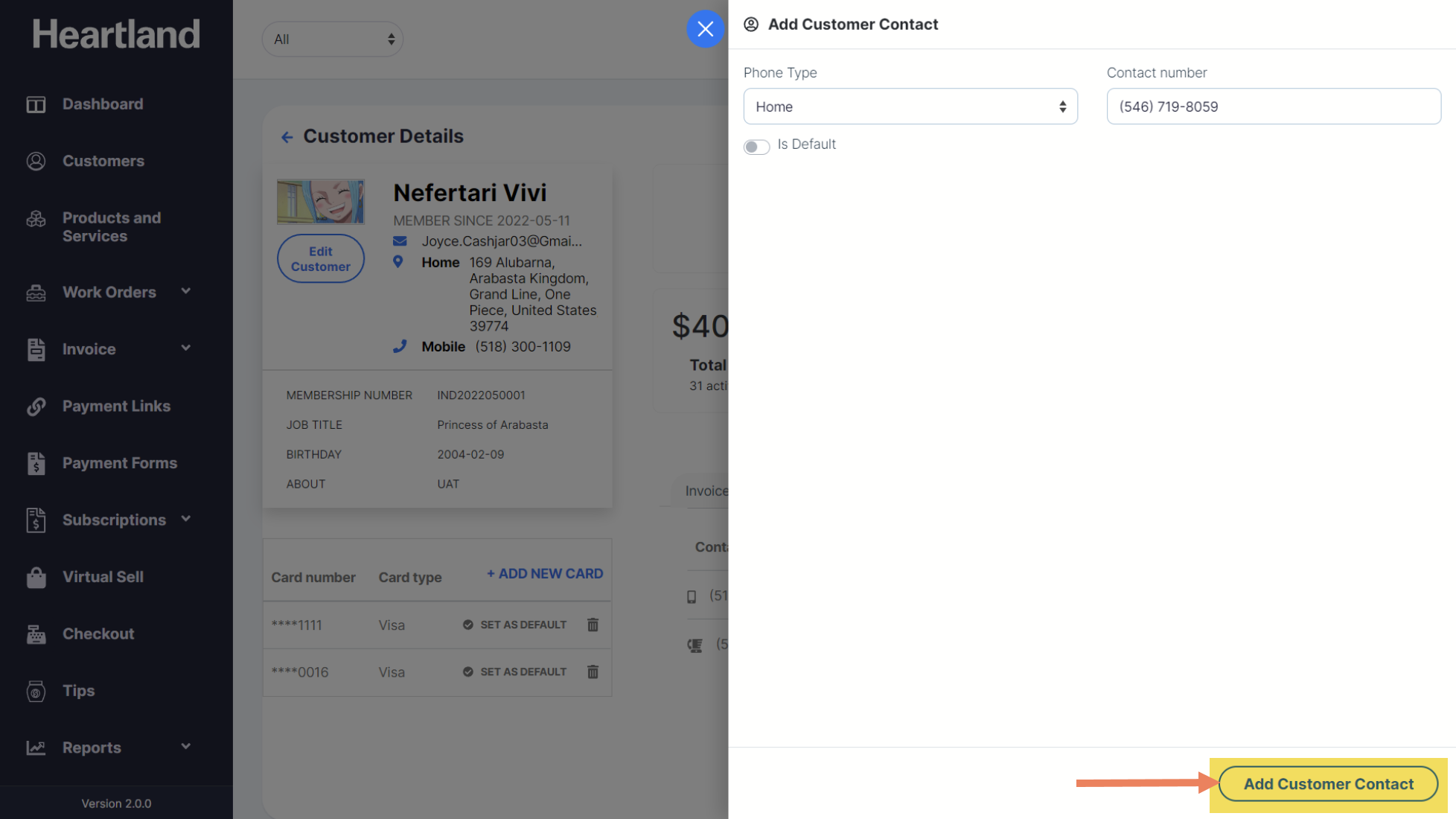
Input customer’s contact details and click Add Customer Contact.
 A message will appear once adding customer contact is successful.
NOTE: Customer's newly added number should be seen under Contacts tab without refreshing the page.
Step 4
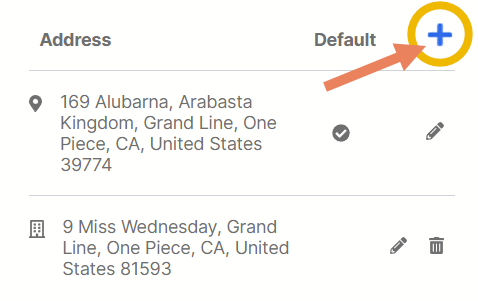
To add a new customer address, click the plus ‘+' sign on the Address panel and a slide-out modal will appear.
Step 5
Input customer’s address and click Save.
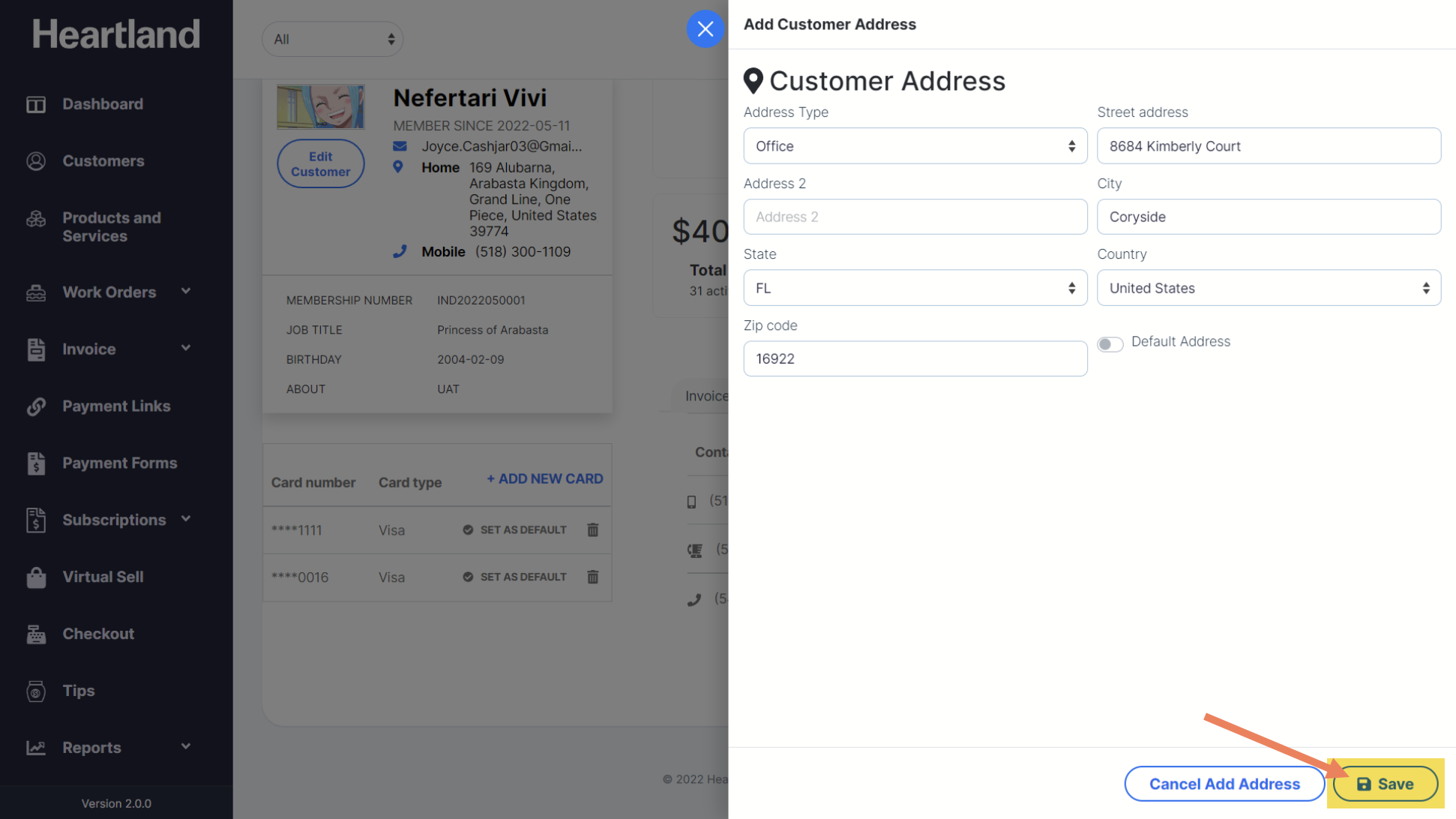
A message will appear once adding customer address is successful.
NOTE: Customer's newly added address should be seen under Contacts tab without refreshing the page.
Comments
0 comments
Please sign in to leave a comment.